
Create and edit courses
How to create and edit courses for your employees
Create a new course
As an administrator, you can create your own courses for your company.
Create the course
- Go to Admin > Courses
- Click “New course” or ”+”
- Fill in the basic information
Basic information
| Field | Description | Required |
|---|---|---|
| Course title | Name of the course | Yes |
| Description | Short summary | Yes |
| Category | Topic area of the course | Optional |
| Instructor | Name of the responsible person | Optional |
| Course image | Preview image (recommended: 16:9) | Optional |
AI images in the AI Course Builder
The AI Course Builder can generate matching 16:9 images for lessons and exercises. The default is Krea 2 because it produces good course illustrations at low cost.
For normal course images, keep the visuals descriptive and text-free. Avoid posters, screenshots, slides with headings, or images with lots of text. Titles, labels, and explanations belong in the LMS content, not inside the image.
Style preview
These examples show how the available image styles look:




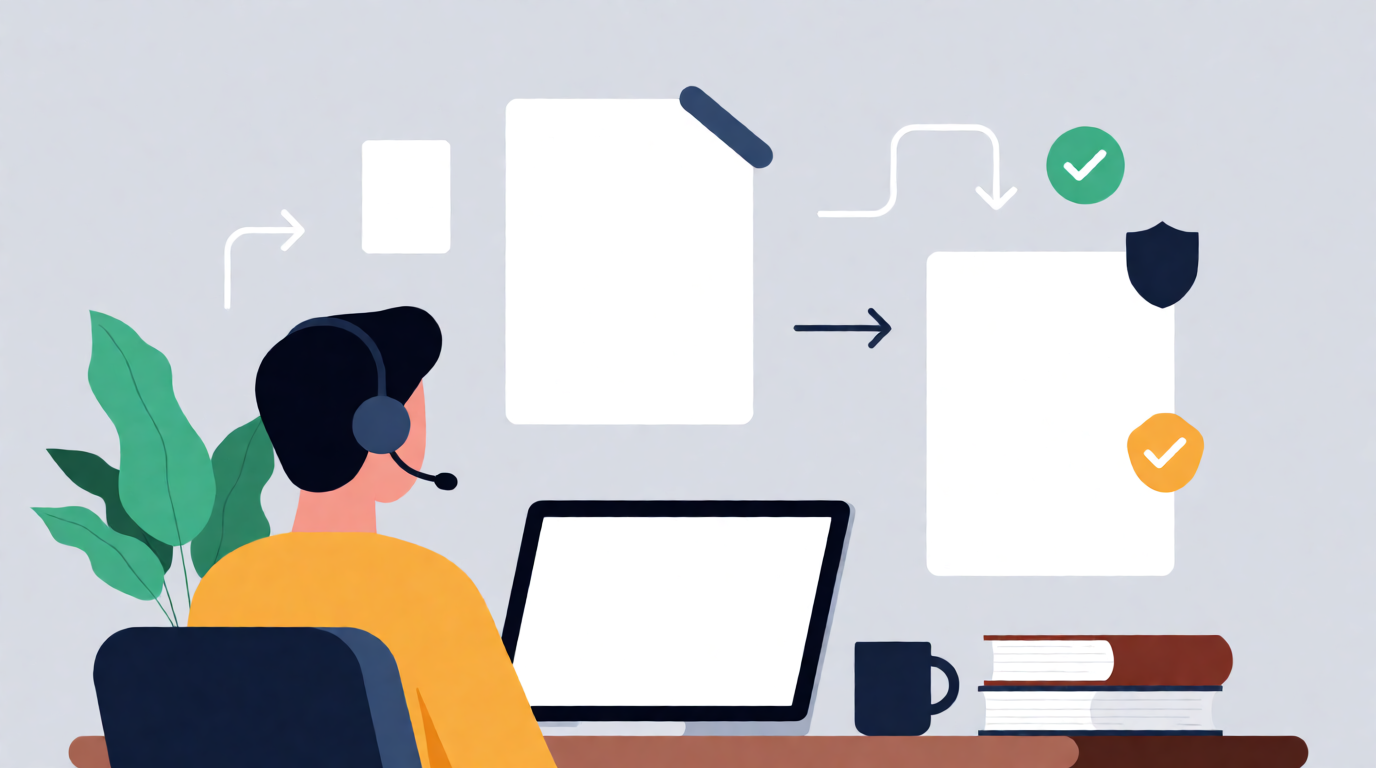
Recommendation: Use Flat vector or 2D illustration for most courses. Realistic works well for workplace situations, Isometric for processes and systems, and Minimal icon for very reduced learning concepts.
Write the description
A good course description includes:
- Learning objectives: What will participants learn?
- Target group: Who is the course intended for?
- Prerequisites: Required prior knowledge
- Duration: Estimated learning time
Build the course structure
After creating the course:
- Add chapters
- Create lessons in each chapter
- Add content to the lessons
Read more: Add chapters and lessons
Edit courses
Open a course
- Go to Admin > Courses
- Find the course in the list
- Click “Edit” or the course title
Editable elements
You can change these at any time:
- Title and description
- Course image
- Chapters and lessons (order, content)
- Quiz questions
Course status
Draft vs. published
| Status | Meaning |
|---|---|
| Draft | Course is being edited and is not visible to employees |
| Published | Course is active and can be assigned |
Publish a course
- Make sure the course is complete
- Click “Publish”
- The course can now be assigned to groups
Unpublish a course
If needed, you can move a course back to draft status:
- Open the course
- Click “Unpublish” or “Save as draft”
Note: Users who were already assigned keep their progress.
Duplicate a course
To create a similar course:
- Open the existing course
- Click “Duplicate” or “Copy”
- A new course with identical content is created
- Adjust the new course as needed
Delete a course
Be careful when deleting
Deleting a course:
- Permanently removes all content
- Deletes the progress of all participants
- Removes all certificates for this course
How to delete a course
- Go to Admin > Courses
- Click ”…” or the menu on the course
- Select “Delete”
- Confirm the action
Recommendation: Set the course to “Draft” instead of deleting it.
Best practices
Before creating a course
- Define learning objectives: What should participants be able to do?
- Collect content: Prepare videos, texts, and documents
- Plan the structure: Sketch chapters and lessons in advance
During creation
- Clear titles: Use meaningful names for chapters and lessons
- Short lessons: Prefer many short lessons over a few long ones
- Use multimedia: Videos and images increase engagement
- Add quizzes: Knowledge checks support learning